Session, scan, register, SACE pack, proof.
That loop is the whole product. Everything below is one step of it, in the order you meet it.
1. Session
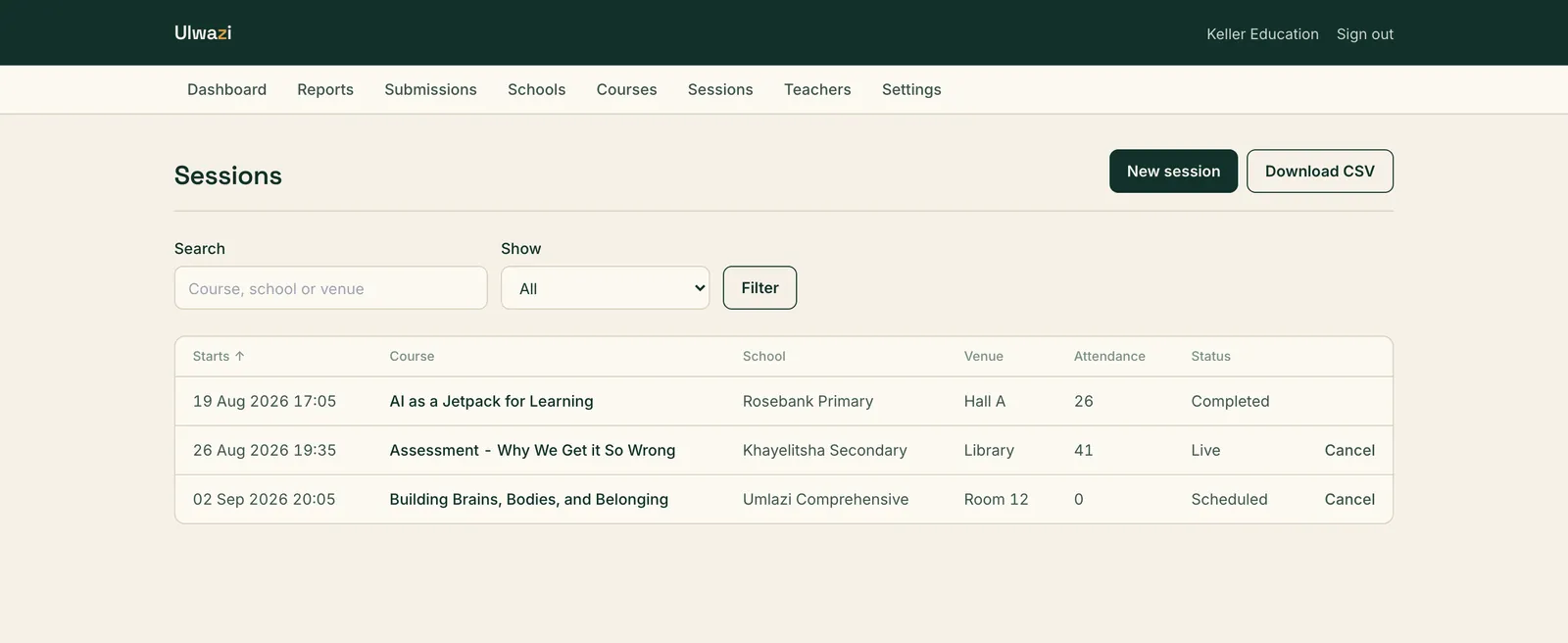
You keep your course catalogue in Ulwazi: title, duration, PD points, and the SACE endorsement number with its start and expiry dates. When you schedule a session against a course whose endorsement has expired or is missing, Ulwazi warns you before the session is created, and records the override if you go ahead anyway.
A session holds the course, the school or the conference, the date and time, the venue and the presenter. The scan window opens thirty minutes before the start and closes thirty minutes after the end, and you can change both.
Points follow SACE's own schedule. A half day of two to five hours is 5 points, one day of six to eight hours is 10, two to five days is 15, and anything from six days is whatever your endorsement allocates. Ulwazi suggests the number from the duration and lets you change it.
2. Scan
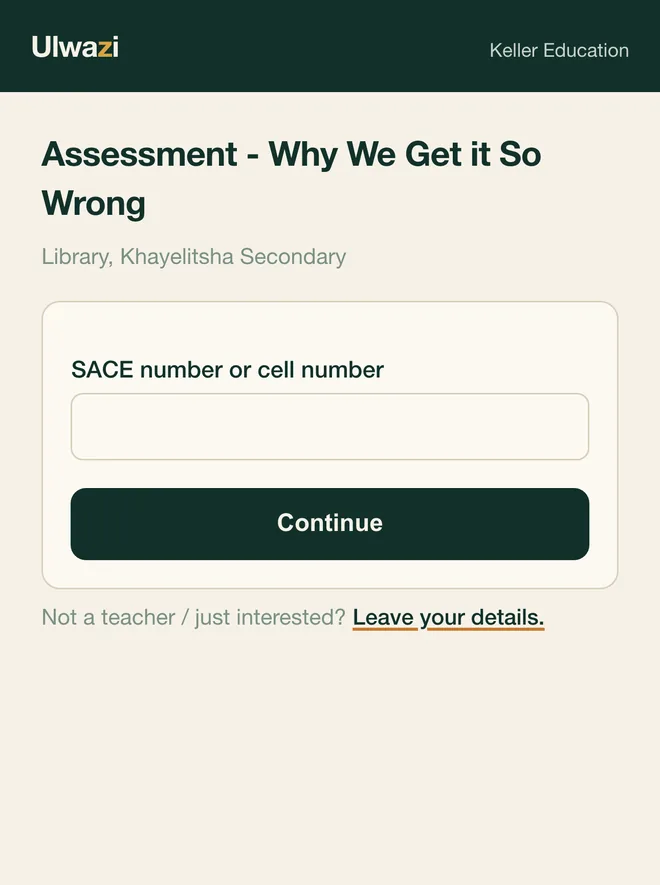
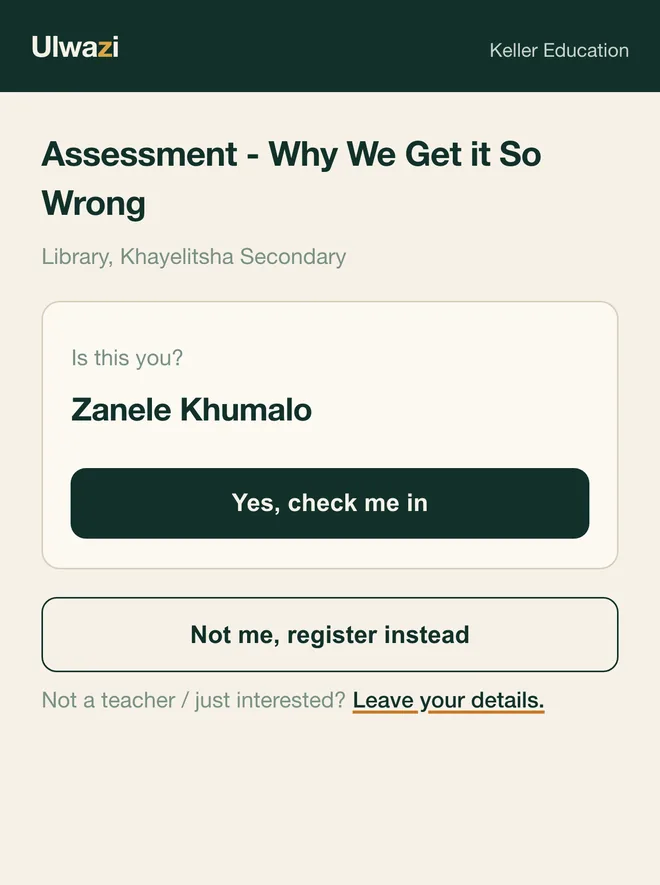
Project the QR code on the live screen, or print it on a poster. A teacher scans it, her browser opens, and she types her SACE number or her cell number. One field. She confirms her name and she is in.
A teacher Ulwazi has not seen before fills in a short form once: name, SACE number, ID number, cell number, school, and the POPIA consent. Her next session with you is the ten second version.
The live screen shows the QR code, a running headcount, and each name as it arrives. That code carries a rotating value that changes every sixty seconds. For a session where the register has to be tight, you can set Ulwazi to accept only a scan of the live screen, which makes a photographed or forwarded code useless within a couple of minutes. That setting is off unless you turn it on, so a printed poster keeps working for ordinary sessions.
When a phone is flat or a teacher has no signal, the presenter adds her by hand in two taps from the live screen. Manual records are marked as manual and carry the name of the staff member who captured them. The ID number is optional on that path, so nobody is stuck at the door without a document.
Someone who scans the code but is not there for points can leave their details instead. Those enquiries are kept for you separately from the register.
3. Register
Every check-in becomes an attendance record with a timestamp and the method used. Scan a second time and Ulwazi tells the teacher she is already checked in, with the time, rather than adding a second row.
Attendance at a school session is verified automatically. Attendance at a conference, or an attendance tagged to a school that did not host the session, waits for the school coordinator to approve it in a batch. If the school is slow and a SACE deadline is close, you can approve on their behalf. That override is recorded with your name and your reason.
Records move through a fixed set of states: captured, verified, queued, submitted. Voiding a record keeps it in place and records why. Nothing quietly disappears from a register you have already filed.
4. SACE pack
One click on a session, or on a date range, generates two documents: the Attendance Register for Type 3 Programmes and the Professional Development Activity Profile Form. Both are built to match SACE's own layouts, field for field, and are tested against copies of SACE's published documents.
The header fields come from your tenant profile and the session: provider name, SACE provider number, activity, date, location, education district, province, duration, PD points allocated, and your contact details. The attendee rows come from the scans. Where a teacher checked in electronically, the signature cell records that, with the time.
Send the pack by email to your configured SACE addresses with yourself in copy, or download it. A date range comes back as one zip with a pack per session. Ulwazi generates PDFs.
5. Proof
Sending a pack creates a submission record. It holds the sessions it covered, the number of teachers, who it went to, who sent it, and when. The generated files stay attached to it.
A correction never overwrites the original. It creates a new submission that supersedes the old one, and both remain on record. SACE's own download links have been known to break. Your copy does not depend on them.
Voids, ID number reveals, submission sends, teacher merges and deletions all write to an audit log that can be added to but never edited.
The school dashboard
The deputy principal who coordinates CPD at a school decides which provider comes back next term. Ulwazi gives that person a login to their own school, free, with no work to do.
They see the sessions run at their school, the register for each one, and a points summary per staff member. They can download a register or export to CSV. If any attendance needs their approval, it is waiting in one queue they can clear in a batch.
Their register is its own document. The ID number column is not in that template at all. A school has no reason to hold teacher ID numbers, so Ulwazi never sends them any.
Coordinators cannot see your catalogue, create sessions, or see anything about money.
What a teacher sees
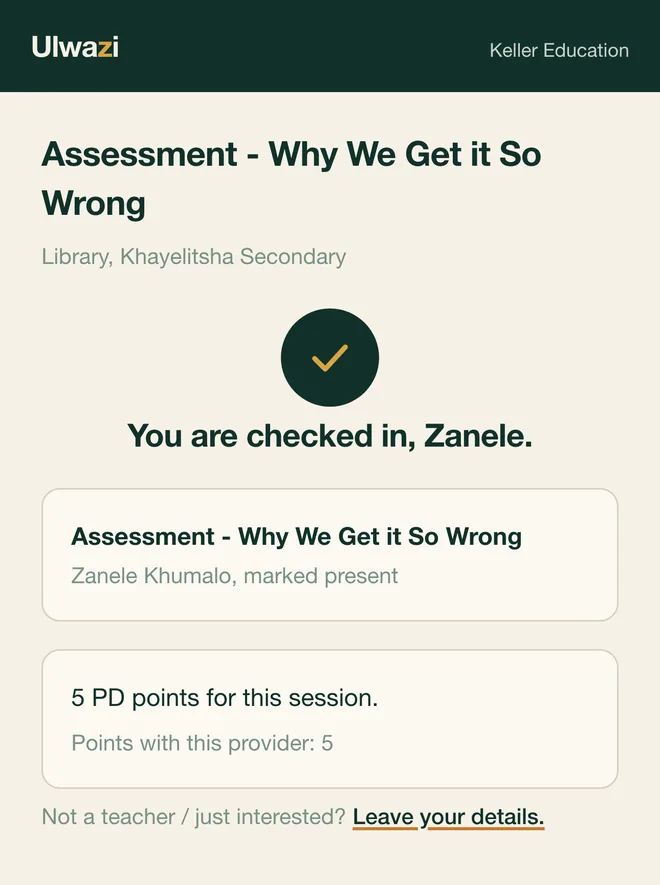
A teacher never makes an account, never sets a password, and never installs anything. She sees three screens: the field where she types her SACE number, a confirmation of her name, and a success screen.
The success screen names the session, its points value, and her running total with you. It says "points with this provider" and nothing more, because Type 3 courses are only one part of the 150 points she needs in her cycle, and Ulwazi will not show her a total it cannot stand behind.
Her ID number is entered once and is never shown back to her.
Not built yet
Ulwazi is new, so here is what it does not do. Certificates, the message that tells a teacher her attendance has been filed with SACE, and her own page of history and points are all planned and not built. The SACE pack is a PDF today. A Word version is planned. The interface is in English.
See it on your own courses.
Send us the courses you run and the schools you visit, and we will set up a working version for you to look at.